AI documentation assistant for WordPress plugin teams
How to add an AI documentation assistant to your website
This guide follows the current Docapta workflow. It is designed for plugin makers and small product teams with documentation already published on the web.
Guide updated:
Install the documentation chatbot on WordPressBefore you start
Have your public documentation URLs, the exact HTTPS website where you will install the widget, and a support email or support page ready. Pages behind a login and private network addresses cannot be imported.
1. Create your assistant
Register, verify your email and subscribe. Create one assistant for your product and add its support contact.
2. Import and check your documentation
Add public HTTPS documentation URLs. Wait for indexing, then test real questions and inspect the linked sources.
3. Install and verify your widget
Save your website address, copy the embed snippet into that site, and test a visitor question. The dashboard reports a successful installation after a verified answer.
Check the answer before publishing
Try an installation question, a question whose answer is in a specific documentation page, and an account or refund question. Inspect source links and the support handoff. Indexing can take time; an accepted import is not proof the page is searchable yet.
What is included, and what is not
The plan is $39 per month: one assistant on one website, up to 50 public HTML pages within 2 MiB of documentation text, and 500 questions per trailing 31 days. Visitor questions and dashboard quality checks share that allowance. A documentation gap report of unanswered visitor questions is included.
Up to 10 imports per day and 50 per trailing 31 days; updates count. Questions and import attempts may consume allowance even when they fail. Renewal or replacing an assistant does not reset usage. Excess usage stops rather than creating automatic overage charges. Burst and service cost protection also apply.
PDF/Word uploads, private-document ingestion and automatic account, order or refund actions are not available. AI answers can be incorrect; review source instructions for important actions.
Manage payment and cancellation
Subscribe through Stripe from the pricing page. After payment is confirmed, paid assistant features become available. Use Billing to see invoices, update your payment method or cancel renewal at the end of the paid period. Account deletion is permanent; a cancellation that requires Stripe approval must be approved before cleanup continues.
If installation or answers do not work
Check that the saved website matches the page where the widget is installed, including www and the HTTPS origin. Check indexing status and remaining allowance. If the answer is not supported by your pages, add or improve the documentation before retesting. Contact support@docapta.com for help; response times are not guaranteed.
Install the documentation chatbot on WordPress
Use the exact embed snippet from your Docapta dashboard in a site-wide script area. A script manager such as WPCode is one option; Docapta itself does not require a downloadable WordPress plugin.
Copy your assistant snippet
In Docapta, open your assistant and choose Install on your website. Save the exact HTTPS website where visitors will use it, then copy the generated embed code. https://example.com and https://www.example.com are different websites for this check.
Add it once in WordPress
If using WPCode, install and activate it from Plugins → Add New Plugin. Open Code Snippets → Header & Footer, paste the complete Docapta snippet in the Footer field and save changes. An existing theme or script manager with a site-wide footer HTML field also works; use one method only.
Verify on a published page
Clear your website cache, then open a published page on the saved website while logged out of WordPress. Open the widget, complete any security verification and ask one question answered by an indexed document. Follow its source link, then check that Docapta records a verified website answer. Seeing the launcher alone does not verify installation.
See it in WPCode
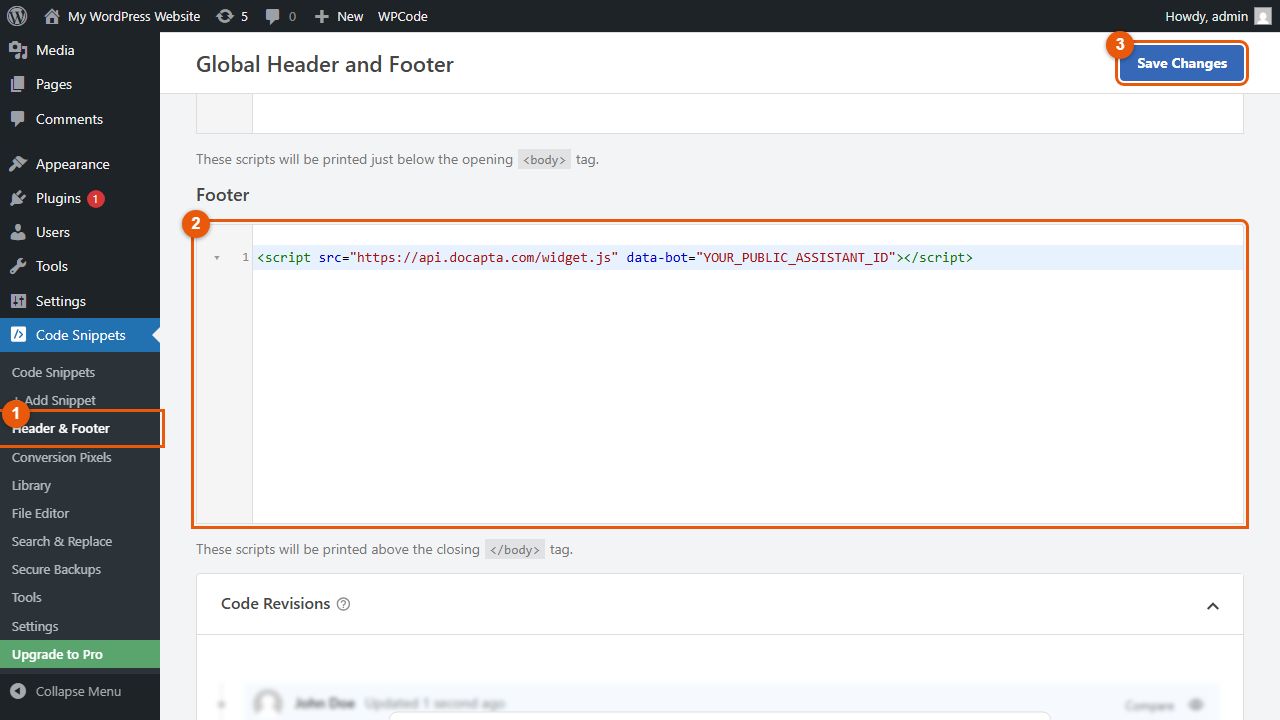
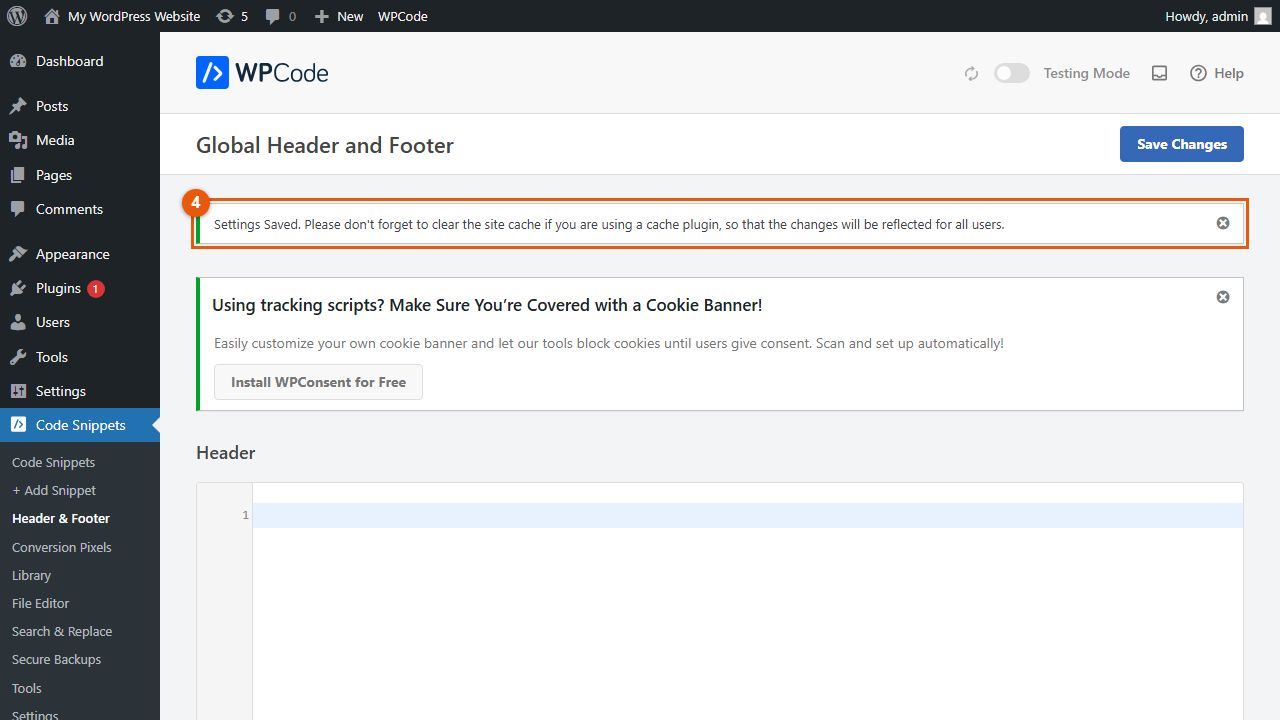
Recorded on a disposable local WordPress site (WordPress 7.1.3 with WPCode 2.4.0, captured 2026-10-18). The code shown is a placeholder; copy your own complete code from the Docapta dashboard. Numbered orange outlines were added to the screenshots. Your WordPress version and menus may look different.
What the embed code looks like
<script src="https://api.docapta.com/widget.js" data-bot="YOUR_PUBLIC_ASSISTANT_ID"></script>Illustrative format only. Copy your own complete code from the dashboard; YOUR_PUBLIC_ASSISTANT_ID is a placeholder, not a working assistant. The embed contains a public assistant ID. Never paste Stripe keys, API secrets or passwords into WordPress.
Choose an installation method your site permits
The WordPress instructions above follow WPCode’s documented global Header & Footer method. Hosting plans, WordPress permissions and security plugins can restrict JavaScript. A post’s Custom HTML block may strip script tags and only covers that page; it is not the site-wide method described here. Do not edit a parent theme’s files just to add the snippet. If scripts are prohibited, ask your site administrator or host for a supported integration method.
Example question: How do I activate my plugin license?
A useful answer identifies the activation steps in your own documentation and links to the exact source page. This is a suggested test question, not a claim that your documents contain those steps. Use the public demo below to inspect actual answers and citations.
Installation questions and fixes
Why is the chat launcher missing?
Confirm the snippet is saved on the published page, clear caches and check that your script manager has not disabled it. Install it only once. A content blocker, script restriction or Content Security Policy can prevent loading; ask your site administrator to review the blocked request rather than disabling security globally.
Why is Send unavailable?
Wait for security verification. If it fails, use the widget’s retry action and complete any challenge. Do not remove verification code. If it still fails, contact support with the page URL and visible error, without sending passwords or secrets.
Why does a question have no supported answer?
Check that the relevant public HTML page finished indexing and that your allowance is available. Try a question explicitly answered on that page. If the documentation lacks the answer, improve it and refresh the source; do not treat an unsupported answer as installation success.
Does this work only on WordPress?
No. The widget can be embedded on another HTTPS website that permits the script. The current plan covers one assistant on one website; save that website in Docapta and use its generated snippet.
Can I upload a PDF, Word file or private knowledge base?
No. Docapta currently imports public HTTPS HTML documentation pages. Pages behind a login, private network addresses and PDF/Word uploads are not supported.
Try the documentation demo
The demo uses public Easy Digital Downloads documentation. It is a demonstration, not a customer testimonial or an endorsement by Easy Digital Downloads.
Open the EDD documentation demo